> For the complete documentation index, see [llms.txt](https://developers-apps-in-toss.toss.im/llms.txt). Markdown versions of documentation pages are available by appending `.md` to page URLs; this page is available as [Markdown](https://developers-apps-in-toss.toss.im/guide/en/operation/console-workspace.md).
# Register a Mini App
### 1. Sign up
To use Appintos, first [Appintos Console](https://apps-in-toss.toss.im/)go to the Appintos Console and sign up. Sign-up is based on Toss Business membership.
You need two conditions to sign up.
* You must be at least 19 years old.
* You must have the Toss app logged in under your own name.
***
### 2. Create a workspace
A workspace is a space where team members manage projects together.
* Only one workspace can be created per business.
* The name cannot duplicate another workspace name.
Please give it a name that is easy to recognize, such as your team or project name. You can change the name later.
***
### 3. Manage members
The person who creates the workspace is automatically granted the 'Lead Admin' role.
The Lead Admin is responsible for operating the workspace and can agree to the service terms. Only admins can apply to be Lead Admin; members cannot apply. [Delegate Lead Admin privileges](https://developers-apps-in-toss.toss.im/guide/operation/undefined)
#### Invite members
In the 'Members' menu, click '+ Invite' and enter your teammate's email address to invite them by role.
* **Admin**: Can manage the entire workspace and view settlement information.
* **Member**: Can view and manage information in the apps they have been granted access to.
***
### 4. Register an app
After creating a workspace, register your app by clicking '+ Register' in the 'Apps' menu. You can register an app even if development is not finished yet.
> **Want to manage development and live apps separately?**
>
> Register them separately within the same workspace. You can register test apps and production apps separately.
You can create an app by entering only the information below.
You can enter the rest of the app information as it becomes ready, and each item can be saved as a draft.
#### App name
This is the name displayed in the Toss app. Please choose a name that makes it easy to tell what service it is.
* If you already have a brand or service name in use, we recommend using it as is.
* You can change the app name later in the app information.
**Please follow the rules below for the English name.**
* Choose a noun-form name within 15 characters that is easy to pronounce.
* Do not use imperative sentences or verb phrases.
* Use a brand-style name like 'GoRide Taxi' instead of 'Book a Taxi'.
* Do not use a single common word that has a different meaning from the Korean app name.
* Use 'GoRide Taxi' instead of 'Taxi'.
* Avoid using three or more words, or compound words that are hard to read.
#### appName
When the app scheme is called, you will be moved to the Appintos service based on this ID.
* `intoss://` It is composed in the format. If you do not follow the rules, server certificate issuance may fail.
* appName cannot be changed once registered, so please enter it carefully.
#### App type
Please select the app type based on whether the app you are making is a game or not. The app information items you need to enter later will differ depending on the selected type.
***
### 5. Enter app information
Before launching the app, go to the app information menu, click the \[Edit] button, enter all the remaining app information, and request review. You can launch the app only after app information review is complete.
#### 5-1. Basic information
#### Subtitle
Write a short description so users can easily understand what service they can use.
* It may be shown below the mini app name when searched in the full menu.
* Profanity, exclamation marks, and similar text cannot be used.
#### Detailed description
Based on the detailed description, your app may be selected for Toss Home ads. Please describe as specifically as possible what users can experience in the service.
Please describe the process from when a user first launches the service to when they experience its core features. It helps to explain in sentence form following the flow of 'service access → action → result.' Focus on what users actually see, what they tap, and what kind of experience they have.
Example: Scholarship information service
(X) We provide filters.
**(O) We provide filters based on overseas scholarships, region of residence, and household member information.**
(X) If you subscribe to notifications, we tell you scholarship information that's perfect for you.
**(O) If you subscribe to notifications, we send alerts about the scholarship amount and application deadline that are just right for you, based on your region of residence and household member information.**
Example: Defense game
Enemies coming down while holding umbrellas
Using weapons such as lightning, arrows, and fists
Choose a weapon every two turns
Defeat monsters 10 times to receive 20 gold
Tap the attendance button on the right to receive 100 diamonds on your first check-in
#### Age of use
Appintos is currently available only to users aged 19 and older.
#### Customer inquiry email
Please enter your customer inquiry email so we can respond to inquiries smoothly.
***
#### 5-2. Category and display
#### Category
Please select the category that matches the mini app you are launching. If it differs from the actual service, we will change it to the appropriate category during review and let you know.
Game app
Please select the category that matches the genre of the game you are launching.
If it is a web board game, be sure to check 'Web board game'. [Precautions for web board game services](https://developers-apps-in-toss.toss.im/intro/caution#web-board)
Non-game app
You can set up to major, middle, and minor categories.
You cannot select a category that is the same as a previously selected middle category. For example, if you select 'Travel' as the middle category, you cannot select 'Travel' again as the second category.
#### Display information
Below is what you need to enter in the 'Category and Display' section. You can check the requirements common to all mini apps, as well as the requirements depending on whether it is a game or not.
#### App logo
The app logo is displayed on the mini app home in the Toss app's full menu. For non-game apps, it is also displayed in the top common navigation bar.
* It should remain clear even on small screens.
* The service characteristics should be apparent at a glance.
* It should not be confused with other apps, and it must not cause copyright issues.
* Please use colors and shapes that look natural even in dark mode.
* Please create it as a square 600 × 600 px PNG file.
* Rounded corners cannot be used. (A background color is required; transparent backgrounds cannot be used.)
* Icons, image resources, and similar assets provided by Toss cannot be used as app logos. (Including secondary processing)
#### Thumbnail image (game app)
Thumbnail images are used in various places in the Toss app and are the first images users see before accessing the service. Please create them so users can understand the service at a glance and get a good first impression.
* Please upload as a 1932 × 828 px PNG file.
* Please use an image that shows the mini app's core gameplay screen or main features.
* Use a sharp, high-resolution image, and do not enlarge a small image.
* Create it according to the specified size and do not fill empty space with color or blur.
* Do not include profanity, political expressions, or other biased elements.
* Do not use too much text. If needed, include only a logo or short phrase appropriately.
* When using a logo, make sure the service name is clearly visible.
* Differentiate it so it is not confused with other apps.
* Please use images that do not cause copyright issues.
* Icons, image resources, and similar assets provided by Toss cannot be used as thumbnails. (Including secondary processing)
Recommended exampleNot recommended example
#### Screenshot
Screenshot images are used in Toss search results and app previews.
* Submission is optional. However, submitted mini apps will be reflected in order, and they will be displayed first in the mini app home.
* You can use both custom-made images and screenshot formats.
* Since they are used in search results and app previews, please use images that let users recognize the mini app's features at a glance.
* If you include images, upload at least 3 portrait images or at least 1 landscape image.
* Portrait spec: 636 × 1048 px, PNG file
* Landscape spec: 1504 × 741 px, PNG file
#### Leaderboard (game app)
This is a feature that ranks users based on their scores. Please set policies such as the score unit to record and the sorting criteria.
***
#### 5-3. Game rating classification
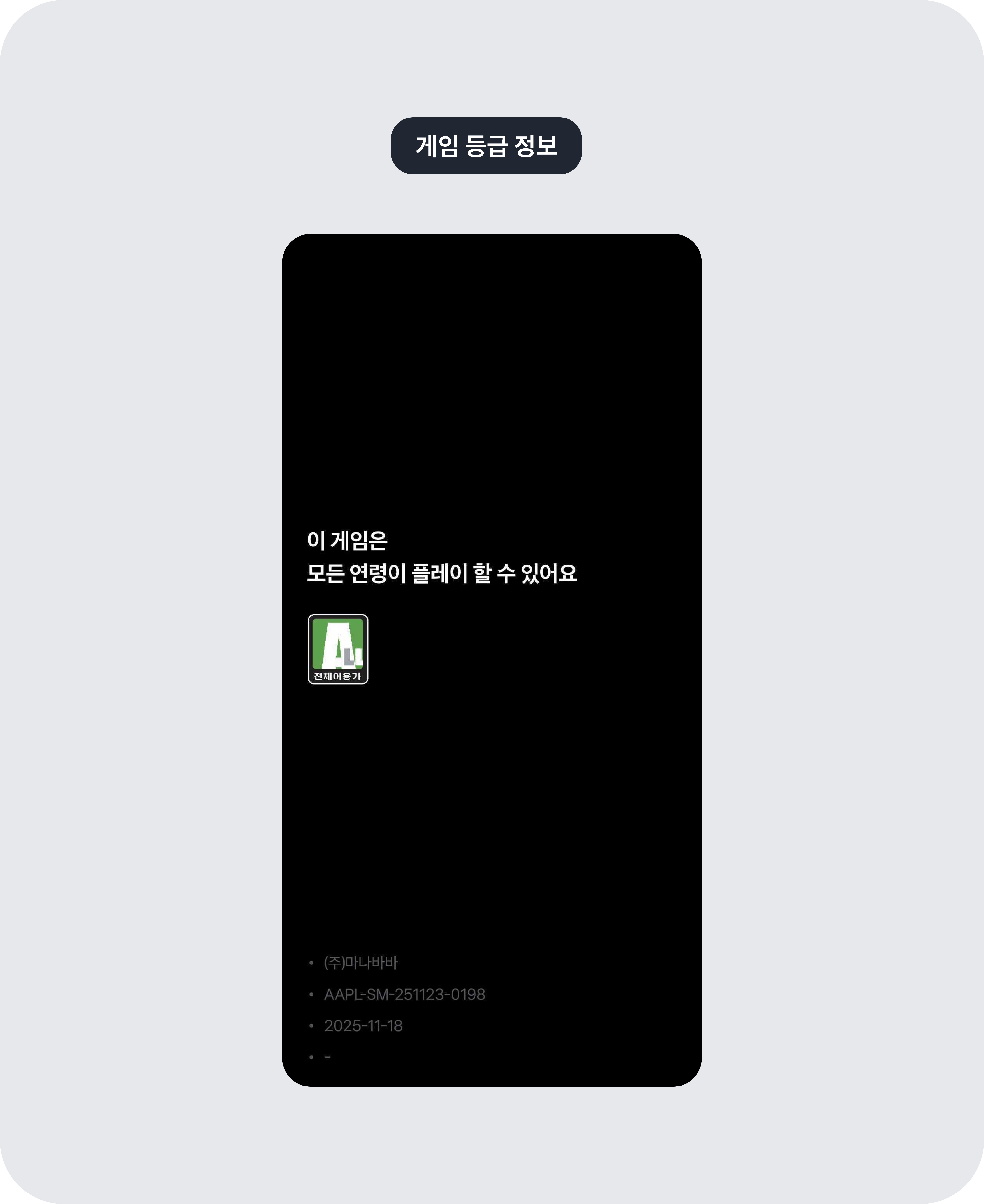
Games must submit proof of rating review. The information entered will be displayed in the Toss app starting from version 5.240.0 as shown below.
#### 1) If you received launch review in a store, please enter the store URL
If the game was rated in an open market (App Store, Google Play Store, One Store, Microsoft Store), you must enter the URL of the game page released in the open market and the self-rating game information.
> **Why do I need to enter game rating information and self-rating game information?**
>
> According to Korea's Game Rating and Administration Committee regulations, this is to verify that the game rated by a self-rating business operator and the game you want to launch in Appintos are the same game. If you do not comply, the game may be considered unrated, which can lead to measures such as corrective recommendations, criminal investigation requests, or administrative action requests.
**Game rating information**
After changing it to 'Store link', please enter the link to the page where the game is released.
**Basic information**
* If you are a business owner, enter the information from your business registration certificate.
* If you are an individual developer (non-business owner), enter your personal information.
**Self-rating game information**
To enter the information below, first look up the game released in the open market on the Game Rating and Administration Committee's 'Self-Rating Game Lookup' page.
* **Registrant name**: Please enter the registrant name shown in the store. For Google Play Store, enter the developer name; for Apple App Store, enter the provider name.
* **Self-rating business operator name**: Please enter the business operator name of the open market where self-rating was carried out, such as 'Google', 'Apple', or 'One Store'.
* **Rating date**: Please enter the rating date exactly as shown in the Game Rating and Administration Committee lookup.
* **Rating number**: Please enter the rating number exactly as shown in the Game Rating and Administration Committee lookup.
* **Age rating**: Please select the same rating as shown in the Game Rating and Administration Committee lookup.
* **Content information**: Please select all items shown in the content information from the Game Rating and Administration Committee lookup. Even if the game is suitable for all ages, select it if content information is provided.
* **Representative seal or signature image**: Please attach an image of the representative's seal or signature. Stamp the seal or sign on white paper, then attach the image.
**Attach screens containing the game's main content (play screen)**
* Please attach two gameplay screens of the game that received self-rating (released in an open market) and two gameplay screens of the game being launched in Appintos.
* Do not edit separately; attach the original gameplay screens as they are.
* If the content information includes sexual or violent elements, attach the corresponding game screen images separately.
What if the registrant name and business operator name are different?
If the registrant name shown on the self-rated game differs from the actual business operator name, the submission will be rejected during review. If there is another reason that can be explained, please submit supporting documents or an additional explanation.
* **Individual (non-business owner)**: Please explain why the registrant name and business operator name are different.
* **Business owner (individual or corporation)**: Please submit a certified copy of the corporate register to explain reasons such as a business name change.
#### 2) If you were reviewed by the Game Rating and Administration Committee, please attach the certificate as a PDF file
**Game rating information**
After changing it to 'Game Rating Certificate', please attach the rating review certificate as a PDF. [How to apply for game rating classification](https://toss.im/apps-in-toss/blog/game_rating_classification)
**Self-rating game information**
Please enter it exactly as shown on the Game Rating Certificate.
***
### 6. Request review
After you finish entering everything according to the app registration guidelines, **'Request review'** please click the button. Review takes 1 to 2 business days, and the result will be sent to you via the Console and email.
---
# Agent Instructions
This documentation is published with GitBook. GitBook is the documentation platform designed so that both humans and AI agents can read, navigate, and reason over technical content effectively. Learn more at gitbook.com.
## Querying This Documentation
If you need additional information that is not directly available in this page, you can query the documentation dynamically by asking a question.
Perform an HTTP GET request on the current page URL with the `ask` query parameter, and the optional `goal` query parameter:
```
GET https://developers-apps-in-toss.toss.im/guide/en/operation/console-workspace.md?ask=&goal=
```
`ask` is the immediate question: it should be specific, self-contained, and written in natural language.
`goal` is optional and describes the broader end goal you are ultimately trying to accomplish on behalf of the user. GitBook uses it to tailor the answer towards what is most useful for that goal.
The response will contain a direct answer to the question and relevant excerpts and sources from the documentation.
Use this mechanism when the answer is not explicitly present in the current page, you need clarification or additional context, or you want to retrieve related documentation sections.